Convert Sales Navigator URLs to LinkedIn URLs (2026 Guide)
Learn how to convert LinkedIn Sales Navigator URLs to regular LinkedIn profile URLs. Step-by-step methods, free tools, and bulk conversion tips.

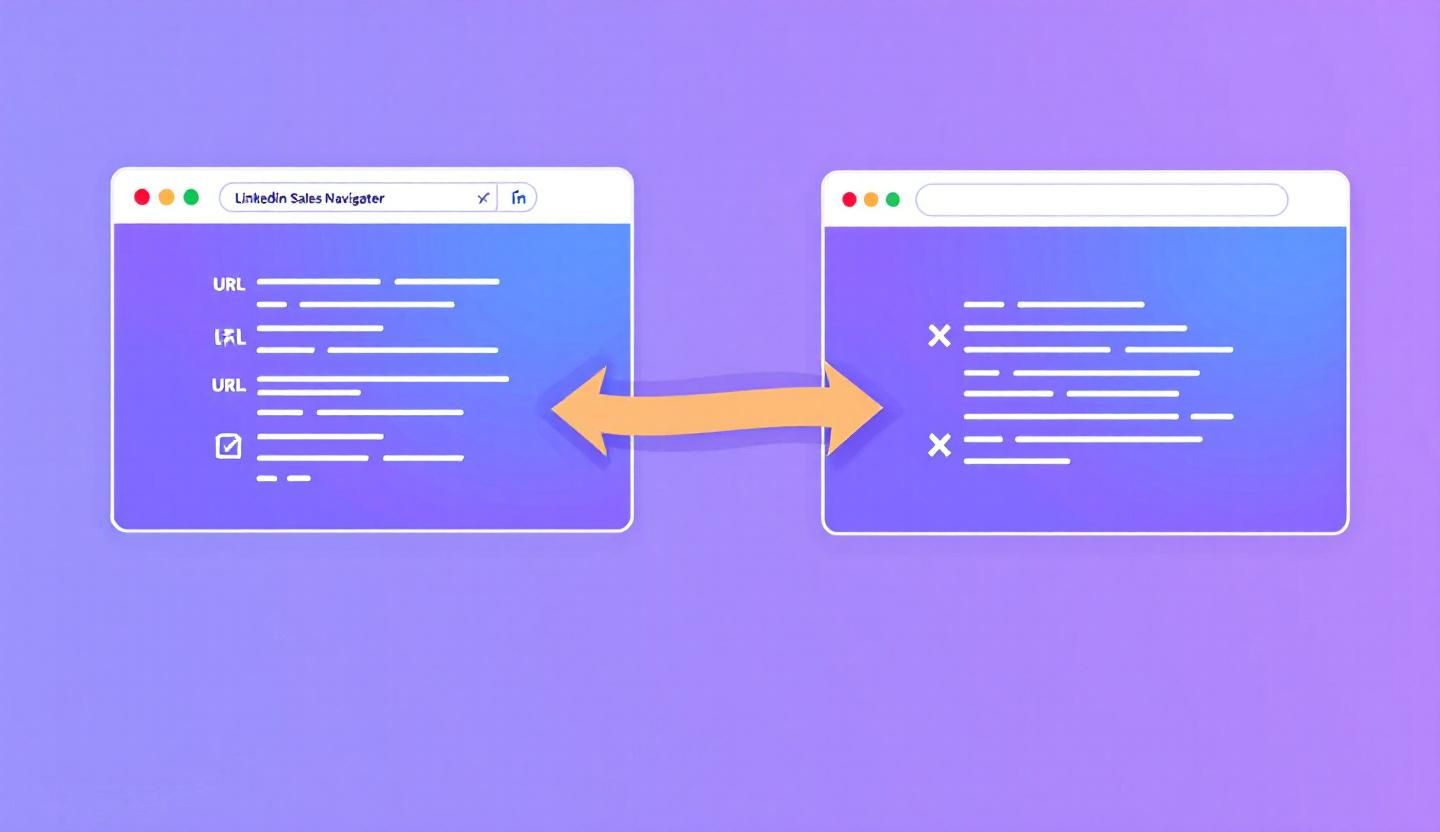
Sales Navigator URLs do not work outside of Sales Navigator. If you have ever pasted a Sales Navigator profile link into a CRM, email, or spreadsheet, you have seen the result: a broken link, a login wall, or a redirect that leads nowhere. This is because Sales Navigator uses its own internal ID system that is completely separate from regular LinkedIn vanity URLs.
The problem gets worse at scale. When you export leads from Sales Navigator, the CSV file contains Sales Navigator URLs—not standard LinkedIn profile links. That means your CRM records, outreach sequences, and enrichment tools all point to URLs that only work for people with active Sales Navigator subscriptions.
Want to Generate Consistent Inbound Leads from LinkedIn?
Get our complete LinkedIn Lead Generation Playbook used by B2B professionals to attract decision-makers without cold outreach.
No spam. Just proven strategies for B2B lead generation.
This guide covers every method to convert Sales Navigator URLs to regular LinkedIn URLs in 2026, from manual one-off conversions to bulk processing thousands of leads.
Key Takeaways
- Sales Navigator URLs use internal lead IDs (e.g.,
ABC123,NAME_SEARCH) that are not the same as LinkedIn vanity usernames - The simplest manual method is opening the profile in Sales Navigator and clicking "View LinkedIn Profile" from the three-dot menu
- Bulk conversion requires third-party tools like Evaboot, PhantomBuster, or custom scripts because Sales Navigator does not export regular LinkedIn URLs
- An inbound strategy eliminates the conversion problem entirely—when prospects come to you, they arrive with standard LinkedIn profile URLs attached to their connection requests and messages
Why Sales Navigator URLs Are Different from Regular LinkedIn URLs
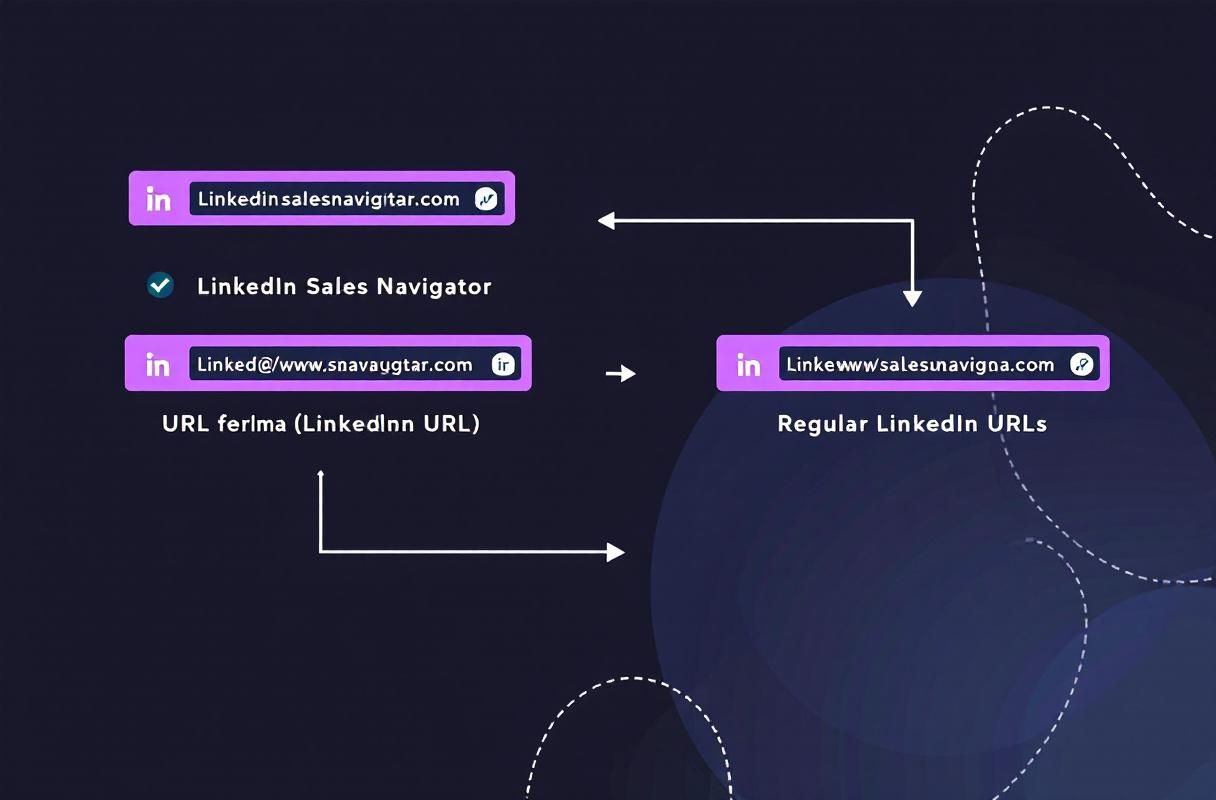
Sales Navigator and LinkedIn.com are effectively two separate products that share the same underlying database. Each uses a different URL structure to identify profiles.
Regular LinkedIn URL format:
https://www.linkedin.com/in/username/
This uses the person's vanity URL slug—a human-readable username they chose or were assigned.
Sales Navigator URL format:
https://www.linkedin.com/sales/lead/ABC123,NAME_SEARCH
This uses an internal lead ID that LinkedIn's Sales Navigator generates for each profile. The ABC123 portion is a unique alphanumeric identifier, and NAME_SEARCH indicates how you found the lead (through name search, account search, etc.).
Why this matters: The Sales Navigator lead ID cannot be converted to a vanity URL through simple string manipulation. There is no algorithmic relationship between ABC123 and username. The only way to map one to the other is to resolve the Sales Navigator URL against LinkedIn's servers, which requires an authenticated session.
This is by design. LinkedIn wants Sales Navigator data to stay inside Sales Navigator.
Method 1: Manual Conversion (One Profile at a Time)
The fastest way to convert a single Sales Navigator URL to a regular LinkedIn URL requires no tools at all.
Step-by-Step Process
- Open the Sales Navigator profile. Paste the Sales Navigator URL into your browser while logged into Sales Navigator.
- Locate the three-dot menu. On the lead's profile page, find the three-dot (more options) icon near the top right of their profile card.
- Click "View LinkedIn Profile." This opens the person's standard LinkedIn profile in a new tab.
- Copy the URL from the new tab. The address bar now shows the regular
linkedin.com/in/username/format.
Alternative shortcut: Some Sales Navigator profiles display a small LinkedIn icon or link directly on the profile page. Clicking it opens the standard profile. The location of this link has changed several times across LinkedIn UI updates, so look for any outbound link icon near the person's name or headline.
When This Method Fails
This method does not work if:
- The person's LinkedIn profile has been deactivated or deleted
- Your Sales Navigator subscription has expired
- The profile is outside your network and Sales Navigator restricts the full view
- LinkedIn is experiencing service issues
For converting more than a handful of URLs, manual conversion is impractical. A list of 500 leads would take hours.
Method 2: Browser Tricks for Finding Regular LinkedIn URLs
You can use your browser's developer tools to extract the regular LinkedIn URL without clicking through to each profile.
Using Network Tab Inspection
- Open Sales Navigator in Chrome or Firefox
- Open Developer Tools (F12 or Ctrl+Shift+I)
- Go to the Network tab
- Navigate to the Sales Navigator profile
- Filter network requests by "voyager" or "identity"
- Look for API responses containing
publicIdentifierorvanityName - The value next to that field is the regular LinkedIn username
Using Page Source Search
- Open the Sales Navigator profile page
- Press Ctrl+U to view page source (or right-click and select "View Page Source")
- Search (Ctrl+F) for
publicIdentifier - The value in quotes after this field is the person's LinkedIn vanity URL slug
Both of these methods still require visiting each profile individually. They are useful for occasional lookups but do not scale.
Method 3: Tools for Bulk URL Conversion
When you need to convert hundreds or thousands of Sales Navigator URLs at once, third-party tools are the practical option.
Tool Comparison
| Tool | Conversion Method | Pricing (2026) | Speed | Risk Level |
|---|---|---|---|---|
| Evaboot | Chrome extension, extracts during export | From $49/mo | Extracts in real-time during search | Low (mimics browsing) |
| PhantomBuster | Cloud-based automation | From $69/mo | 10-30 profiles/min | Medium (API-based) |
| Derrick App | Google Sheets add-on | From $49/mo | Batch processing | Low |
| TexAu | Multi-step automation | From $79/mo | 15-25 profiles/min | Medium |
| Custom scripts | Python/Node.js with cookies | Free (DIY) | Variable | High (manual maintenance) |
How Evaboot Handles Conversion
Evaboot is the most commonly used tool for this specific task. It works as a Chrome extension that sits on top of Sales Navigator.
- Install the Evaboot Chrome extension
- Run your Sales Navigator search as normal
- Click the Evaboot export button
- Evaboot visits each profile in the background and extracts the standard LinkedIn URL
- Download the CSV, which includes both the Sales Navigator URL and the regular LinkedIn URL
Evaboot cleans the data during export, removing duplicates and verifying that the LinkedIn URLs are active.
How PhantomBuster Handles Conversion
PhantomBuster uses a cloud-based approach with a "Sales Navigator Profile Scraper" phantom.
- Create a PhantomBuster account
- Select the "Sales Navigator Profile Scraper" phantom
- Paste your list of Sales Navigator URLs as input
- Configure session cookies (your
li_atcookie) - Run the phantom
- Download the output CSV, which includes mapped LinkedIn profile URLs
PhantomBuster resolves each Sales Navigator URL by loading the profile and extracting the public profile identifier from the API response.
Method 4: Using LinkedIn's API for URL Resolution
If you have access to LinkedIn's official Marketing or Compliance APIs, you can resolve Sales Navigator IDs programmatically.
Official API Approach
LinkedIn's official API allows authorized partners to look up profiles by member ID. However, access is restricted:
- Marketing API: Requires an approved LinkedIn app with specific permissions
- Compliance API: Available only to enterprise partners
- Sales Navigator API: Available on Advanced Plus plans, syncs to CRM but does not provide a public URL endpoint
For most users, the official API is not a viable path. LinkedIn restricts API access precisely to prevent mass URL resolution.
Unofficial API Approach (Proceed with Caution)
Some developers use LinkedIn's internal Voyager API directly. By sending an authenticated GET request with a Sales Navigator lead ID, the API returns a JSON response containing the publicIdentifier field.
This approach violates LinkedIn's Terms of Service. Accounts using unofficial API access risk suspension. If you rely on your LinkedIn account for business development, the risk is significant.
What Most Guides Get Wrong About URL Conversion
Most articles on this topic treat URL conversion as a simple technical problem with a clean solution. After working with dozens of B2B teams running Sales Navigator workflows, the reality is more nuanced.
Converted URLs Still Go Stale
LinkedIn vanity URLs change. When a person updates their custom URL or deactivates their account, every converted URL you stored breaks silently. There is no notification. Your CRM records quietly become useless.
Teams that convert thousands of URLs at once often discover that 10-20% of those URLs are dead within six months—not because the conversion failed, but because people change their profiles.
The Conversion Step Adds Friction to Every Workflow
Every time you pull a lead list from Sales Navigator, you need to run it through a conversion process before the data is usable in your CRM, email tool, or enrichment platform. This adds a step, a cost, and a failure point to your pipeline.
The better question is not "how do I convert these URLs faster?" but "why am I building workflows that require URL conversion at all?"
Batch Conversion Tools Can Trigger LinkedIn Restrictions
Bulk conversion tools work by visiting hundreds of profiles in rapid succession. LinkedIn's anti-automation systems detect this pattern. Even tools that throttle their request rate can trigger temporary restrictions on your account, especially if you are converting large lists frequently.
Real Results: When URL Conversion Matters (and When It Does Not)
URL conversion is a necessary step in outbound workflows. If your strategy depends on exporting leads from Sales Navigator and feeding them into cold outreach sequences, you need working LinkedIn URLs.
But consider the full workflow cost:
- $99-$149/month for Sales Navigator subscription
- $49-$79/month for a conversion/export tool
- Time spent running exports and conversions
- Ongoing maintenance as URLs go stale
- Account risk from automation tools
Teams that shift even part of their pipeline toward inbound discovery find that the conversion problem disappears for those leads. When a prospect views your profile, engages with your content, or sends a connection request, their standard LinkedIn URL is attached to every interaction. No conversion needed.
This does not mean you should abandon Sales Navigator entirely. It is a powerful research tool. But for the leads that matter most—the ones who already show intent—inbound signals deliver cleaner data with zero conversion overhead. Learn more about using Sales Navigator effectively as a complement to inbound.
How ConnectSafely.ai Helps with Sales Navigator Workflows
ConnectSafely approaches LinkedIn lead generation differently. Instead of extracting and converting data from Sales Navigator, ConnectSafely helps you build the kind of LinkedIn presence that attracts leads directly.
What ConnectSafely offers:
- Profile optimization that turns your LinkedIn profile into a landing page for inbound prospects
- Content strategy tools that increase your visibility to the exact audience you would otherwise search for in Sales Navigator
- Engagement tracking that identifies who is interacting with your content—complete with standard LinkedIn URLs, no conversion required
- CRM-ready data from inbound interactions that never needs URL fixing or enrichment
Starting at $10/month, ConnectSafely replaces the export-convert-enrich workflow with an attract-engage-connect workflow. The leads arrive with clean data because they come to you.
For teams that still use Sales Navigator for research, ConnectSafely complements it by ensuring the profiles you identify in Sales Navigator are also seeing your content organically. This warms up cold outreach and increases connection acceptance rates.
Frequently Asked Questions
How do I convert a Sales Navigator URL to a regular LinkedIn URL?
Open the lead's profile in Sales Navigator and click the three-dot menu, then select "View LinkedIn Profile." This opens the standard profile in a new tab where you can copy the regular linkedin.com/in/username/ URL. For bulk conversion, use tools like Evaboot or PhantomBuster that extract the regular LinkedIn URL during the export process.
Why does my Sales Navigator link not work when I share it?
Sales Navigator URLs require an active Sales Navigator subscription to access. They use internal lead IDs (format: /sales/lead/ABC123,NAME_SEARCH) instead of public vanity URLs. Anyone without a Sales Navigator license who clicks the link will see a login wall or error page. You need to convert the URL to the standard linkedin.com/in/ format before sharing.
Can I bulk convert Sales Navigator URLs to LinkedIn URLs for free?
There is no free automated tool that converts Sales Navigator URLs in bulk. The manual method (opening each profile and clicking "View LinkedIn Profile") is free but time-consuming. For small lists (under 20 URLs), manual conversion is practical. For larger lists, paid tools like Evaboot (from $49/month) or PhantomBuster (from $69/month) automate the process. Building a custom script is possible but requires technical skills and carries account risk.
What is the difference between a Sales Navigator URL and a LinkedIn URL?
A regular LinkedIn URL uses a human-readable vanity slug: linkedin.com/in/username/. A Sales Navigator URL uses an internal alphanumeric lead ID: linkedin.com/sales/lead/ABC123,NAME_SEARCH. These two identifiers have no direct relationship—you cannot derive one from the other without querying LinkedIn's servers. Sales Navigator URLs only work for users with active Sales Navigator subscriptions, while regular LinkedIn URLs are accessible to anyone.
How do I get regular LinkedIn URLs when exporting from Sales Navigator?
Sales Navigator's CSV export does not include standard LinkedIn profile URLs. It only includes the Sales Navigator URL. To get regular LinkedIn URLs, you need to either use a third-party export tool like Evaboot (which resolves the URLs during export) or run the exported Sales Navigator URLs through a conversion tool like PhantomBuster after the fact. The only native LinkedIn method is CRM sync on the Advanced Plus plan, which maps profiles to CRM records but does not provide a downloadable URL list.
Stop converting URLs. Start attracting leads who come to you with clean data.
ConnectSafely.ai helps B2B professionals build LinkedIn authority that generates inbound leads—no Sales Navigator exports, no URL conversion, no broken links in your CRM.
Get started with ConnectSafely.ai for $10/month
Edge Cases in Sales Navigator URL Conversion
When converting Sales Navigator URLs to regular LinkedIn URLs, most guides focus on the straightforward scenarios. However, there are several edge cases that can trip up even the most experienced marketers. For instance, what happens when a lead has multiple LinkedIn profiles, each with its own unique vanity URL? In such cases, the Sales Navigator lead ID might not correspond to the desired profile, leading to incorrect conversions. Another edge case arises when dealing with profiles that have been merged or deleted. If a profile has been merged with another, the Sales Navigator lead ID might still point to the original, now-nonexistent profile, causing conversion errors. Similarly, if a profile has been deleted, the Sales Navigator URL will still be active, but conversion attempts will fail. To navigate these edge cases, it's essential to implement robust error handling and validation mechanisms in your conversion workflow, ensuring that you can identify and correct incorrect conversions before they cause downstream problems.
Myth vs Reality: Common Misconceptions About Sales Navigator URLs
One common misconception about Sales Navigator URLs is that they can be converted to regular LinkedIn URLs using simple string manipulation. Many marketers believe that by replacing the "sales/lead/" part of the URL with "in/", they can obtain the corresponding LinkedIn vanity URL. However, this approach is flawed and often leads to incorrect conversions. The reality is that Sales Navigator lead IDs are generated using a complex algorithm that takes into account various factors, including the lead's profile data, search history, and account settings. As a result, there is no straightforward way to convert Sales Navigator URLs to regular LinkedIn URLs without using authorized APIs or tools. Another myth is that Sales Navigator URLs are less secure than regular LinkedIn URLs. While it's true that Sales Navigator URLs are unique to the Sales Navigator platform, they are still encrypted and protected by LinkedIn's robust security measures. In fact, using Sales Navigator URLs can provide an additional layer of security, as they are less prone to phishing and spam attacks.
Advanced-Level: Using LinkedIn's API to Convert Sales Navigator URLs
For advanced marketers and developers, LinkedIn's API provides a powerful way to convert Sales Navigator URLs to regular LinkedIn URLs programmatically. By using the LinkedIn API's "people" endpoint, you can retrieve a lead's profile data, including their vanity URL, using their Sales Navigator lead ID. However, this approach requires a deep understanding of LinkedIn's API architecture, as well as the necessary permissions and authentication credentials. To get started, you'll need to register an application on the LinkedIn Developer Platform and obtain an API key. Then, you can use the API to fetch the lead's profile data and extract the vanity URL. Keep in mind that this approach is subject to LinkedIn's API usage limits and requires careful error handling to avoid rate limiting and other issues. Additionally, you'll need to ensure that your API usage complies with LinkedIn's terms of service and data protection policies. By leveraging the LinkedIn API, you can build custom tools and workflows that automate the conversion process, saving time and reducing errors.
The Impact of LinkedIn's Algorithm Changes on Sales Navigator URL Conversion
LinkedIn's algorithm changes can significantly impact the conversion of Sales Navigator URLs to regular LinkedIn URLs. For instance, when LinkedIn introduced its "people you may know" algorithm, it changed the way Sales Navigator lead IDs were generated, making it more challenging to convert them to vanity URLs. Similarly, changes to LinkedIn's search algorithm can affect the visibility of profiles, making it harder to find the correct profile corresponding to a Sales Navigator lead ID. To stay ahead of these changes, it's essential to monitor LinkedIn's algorithm updates and adjust your conversion workflow accordingly. This may involve updating your tools and scripts to accommodate changes in the Sales Navigator URL format or modifying your search queries to account for shifts in the search algorithm. By staying informed about LinkedIn's algorithm changes, you can ensure that your conversion workflow remains accurate and efficient, even in the face of changing circumstances.
It Depends: When Common Advice on Sales Navigator URL Conversion Backfires
While common advice on converting Sales Navigator URLs to regular LinkedIn URLs can be helpful, it's not always applicable. In fact, following generic advice can sometimes backfire, leading to incorrect conversions or wasted time. For instance, if you're dealing with a large dataset of Sales Navigator URLs, using a bulk conversion tool might seem like the most efficient approach. However, if the tool is not properly configured or doesn't account for edge cases, it can introduce errors and inconsistencies into your dataset. Similarly, relying on a single method for converting Sales Navigator URLs can leave you vulnerable to changes in LinkedIn's algorithm or API. In such cases, it's essential to consider the specific context and requirements of your project. You may need to use a combination of tools and approaches, or develop custom solutions that account for the unique characteristics of your dataset. By taking a nuanced and context-dependent approach to Sales Navigator URL conversion, you can avoid common pitfalls and ensure that your workflow is tailored to your specific needs.
See How It Works
Watch how people get more LinkedIn leads with ConnectSafely




Related Articles